



How-To Guides / Admin
Create a Scoped Configuration
Configurations bundle specific integrations and tools for a defined audience. Each generates a unique endpoint and API key — deploy to a team, a project, or individual users.
Admin
Configurations
Overview
Scope hierarchy
A configuration can target any level of your organization. Higher scopes inherit org-level policies; you can apply stricter policies at lower scopes.
OrganizationAvailable to all users and teams
TeamsAvailable to all members of a specific team
ProjectsAvailable to collaborators on a specific project
UsersAvailable only to named individuals
A configuration can target any level. Org-level policies always apply as the floor — configurations can only be more restrictive, never more permissive.
How To
Creating a scoped configuration
1
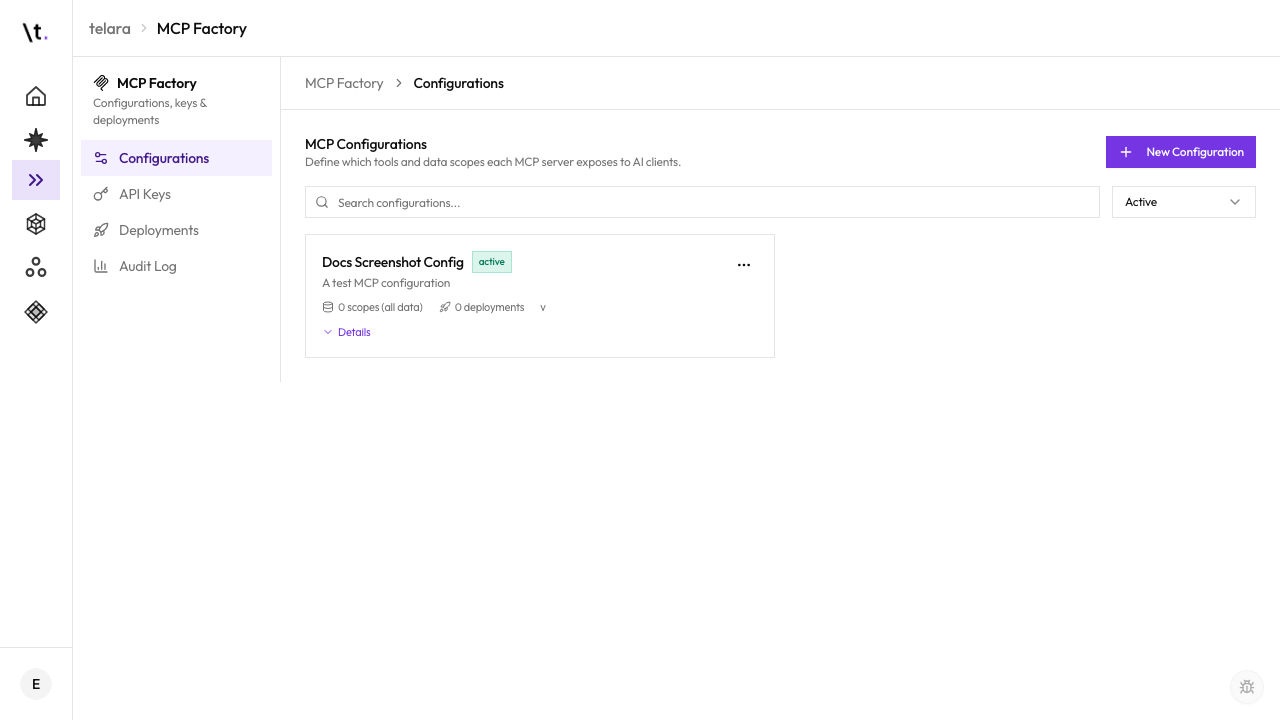
Open Capabilities → New Configuration
Open Agents → Capabilities in the Telara sidebar and, on the Configurations tab, click New Configuration.
2
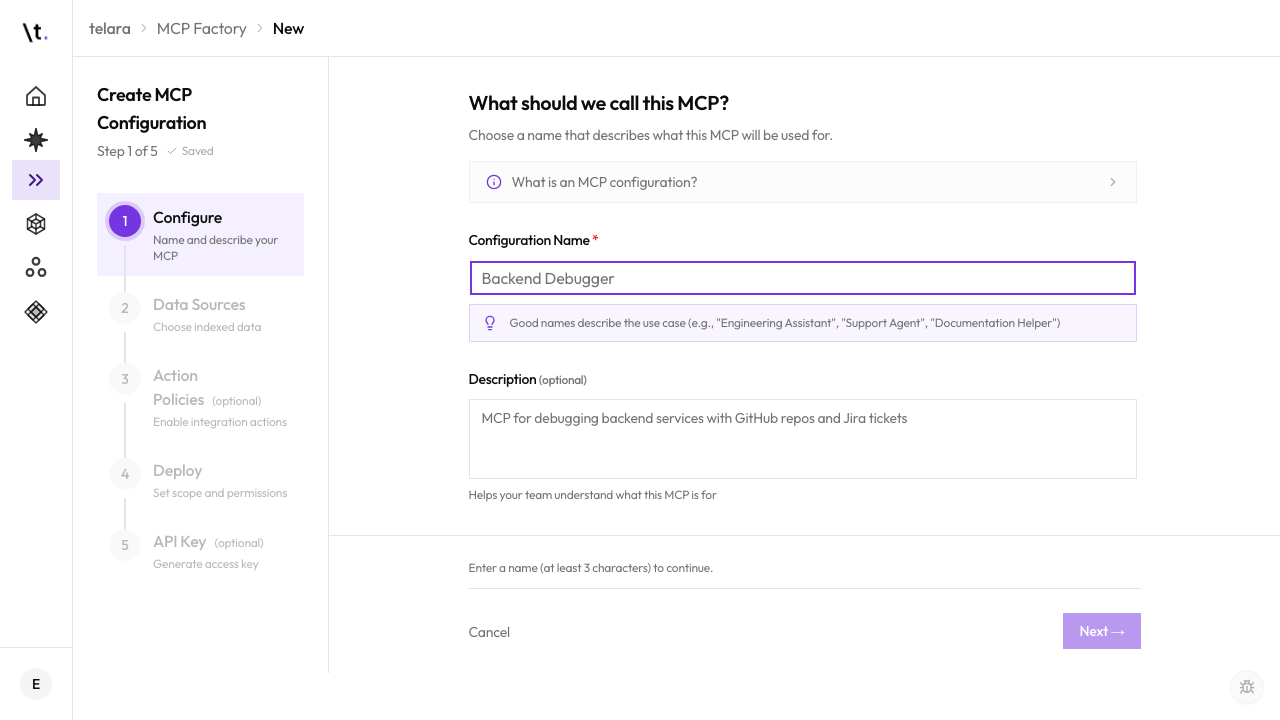
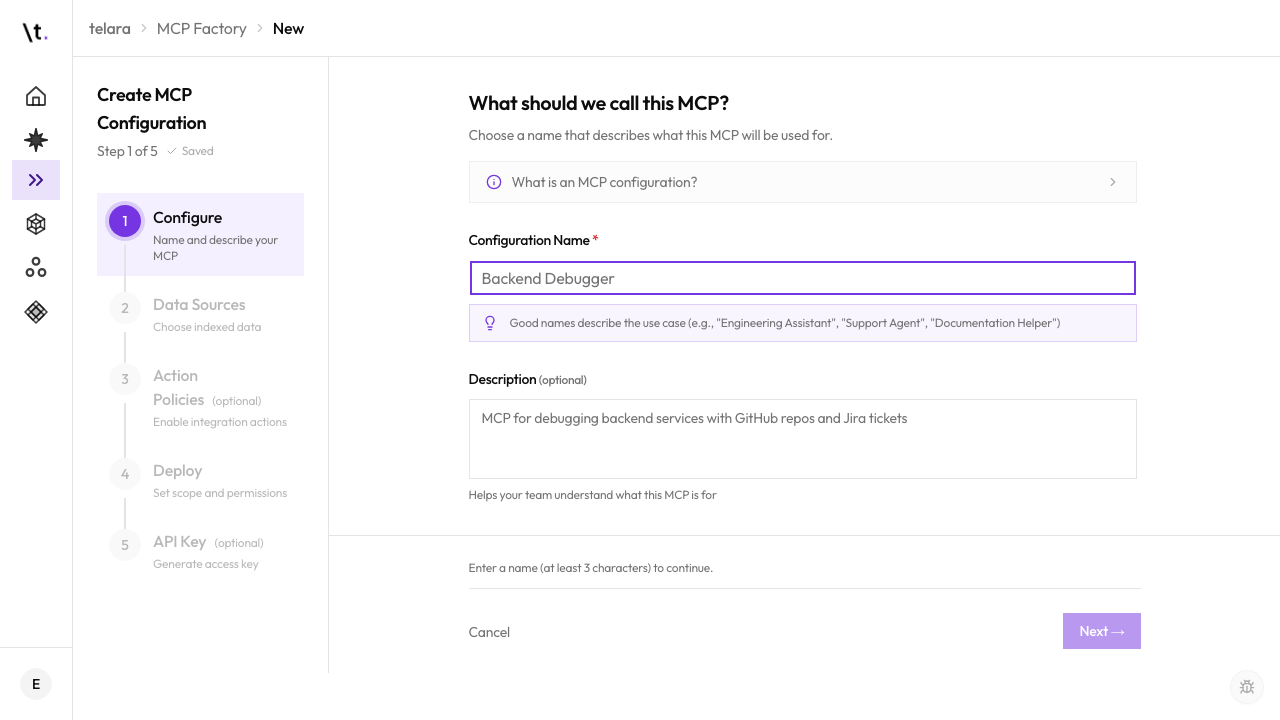
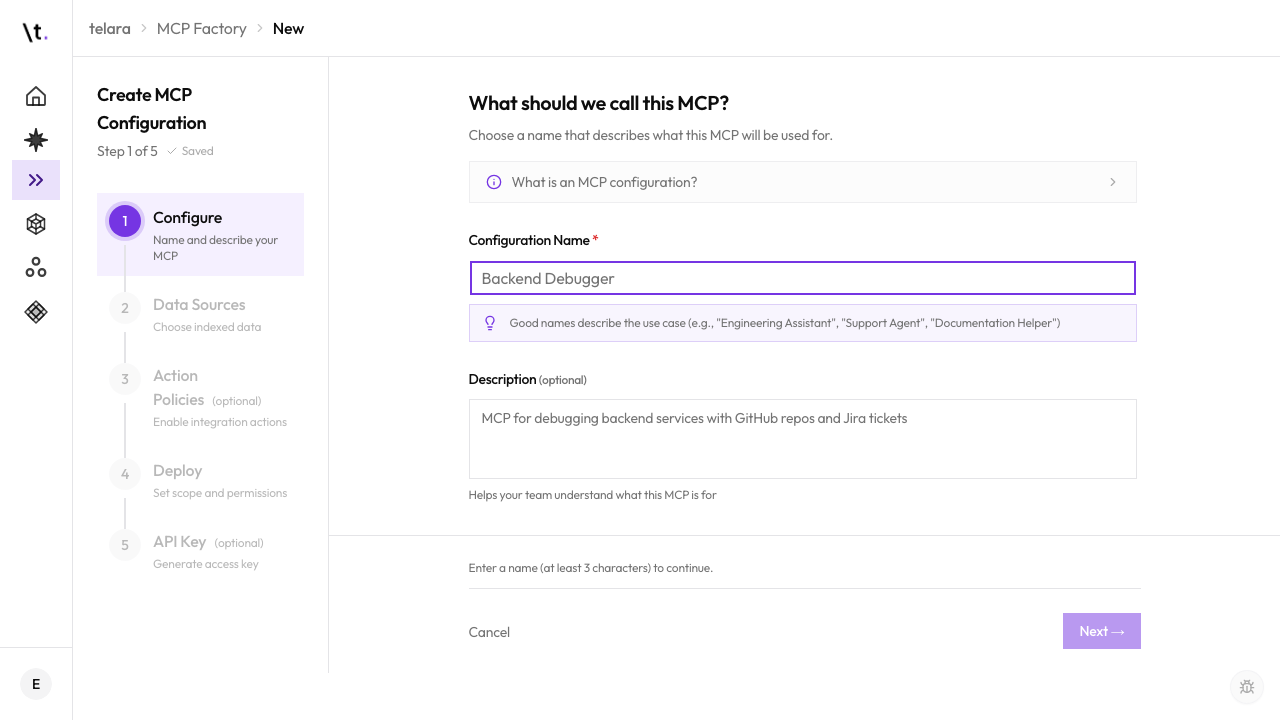
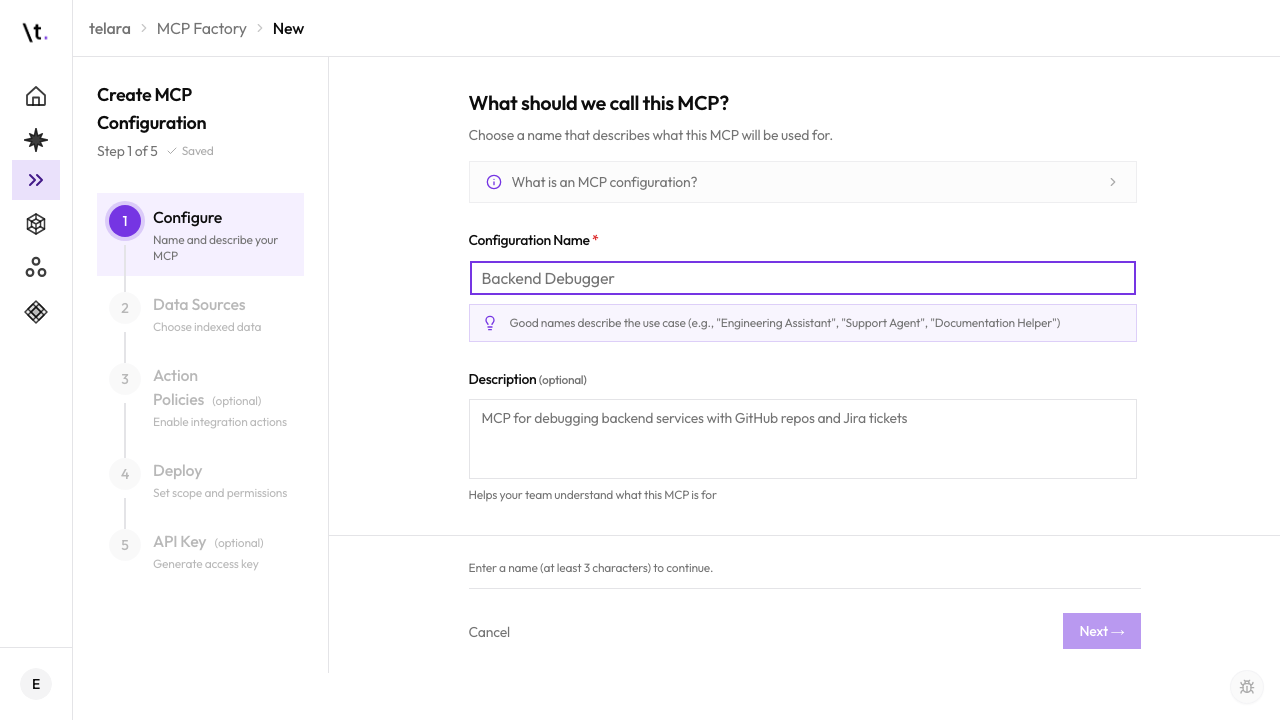
Name and describe the configuration
Give it a clear name that reflects its audience and access level — for example, "Frontend Team — Read Access", "Security Analysts — Full Audit", or "External Contractors — Limited".
3
Select which integrations to include
Choose from the integrations you've already connected in Settings → Integrations. Integrations you haven't connected yet will appear locked.
4
Configure each integration's data filter
For each selected integration, narrow down which resources are accessible. This limits what agents can see and act on:
- GitHub→ Select specific repositories
- Slack→ Allow specific channels only
- Jira→ Limit to specific projects or boards
- Google Drive→ Restrict to specific shared drives or folders
5
Enable search tools as needed
Toggle on the knowledge tools available to users of this configuration: knowledge base search, code search, and document search. Only enable what the audience needs.
6
Set the scope — select who this configuration targets
Choose the teams, projects, or individual users this configuration is for. You can combine multiple: e.g., two specific teams plus three individual users.
7
Attach a permission policy
Use the org-wide default policy, or select a custom policy for this configuration. A custom policy can only be stricter than the org default — it cannot grant more permissions.
8
Save — Telara generates your endpoint and API key
Click Save Configuration. Telara generates a unique endpoint URL and API key for this configuration. You'll use these when deploying to users.
Create separate configurations for different trust levels
A read-only configuration for external contractors with limited GitHub access, and a full-access configuration for core engineers. Each gets its own endpoint and key — revoking one doesn't affect the other.