



How-To Guides / Admin
Deploy a Configuration to Users
A deployment pushes a configuration to a specific audience. Users receive their connection details — and if they're using the Telara CLI, their agent tools connect automatically on next login.
Overview
Two delivery methods
Users run telara login and the configuration is applied automatically. No manual key copying or config file editing. Best for teams already using the Telara CLI.
Users receive an email with the endpoint URL, API key, and setup instructions. They configure their tools manually. Good for teams not using the CLI or for one-off manual setups.
How To
Creating a deployment
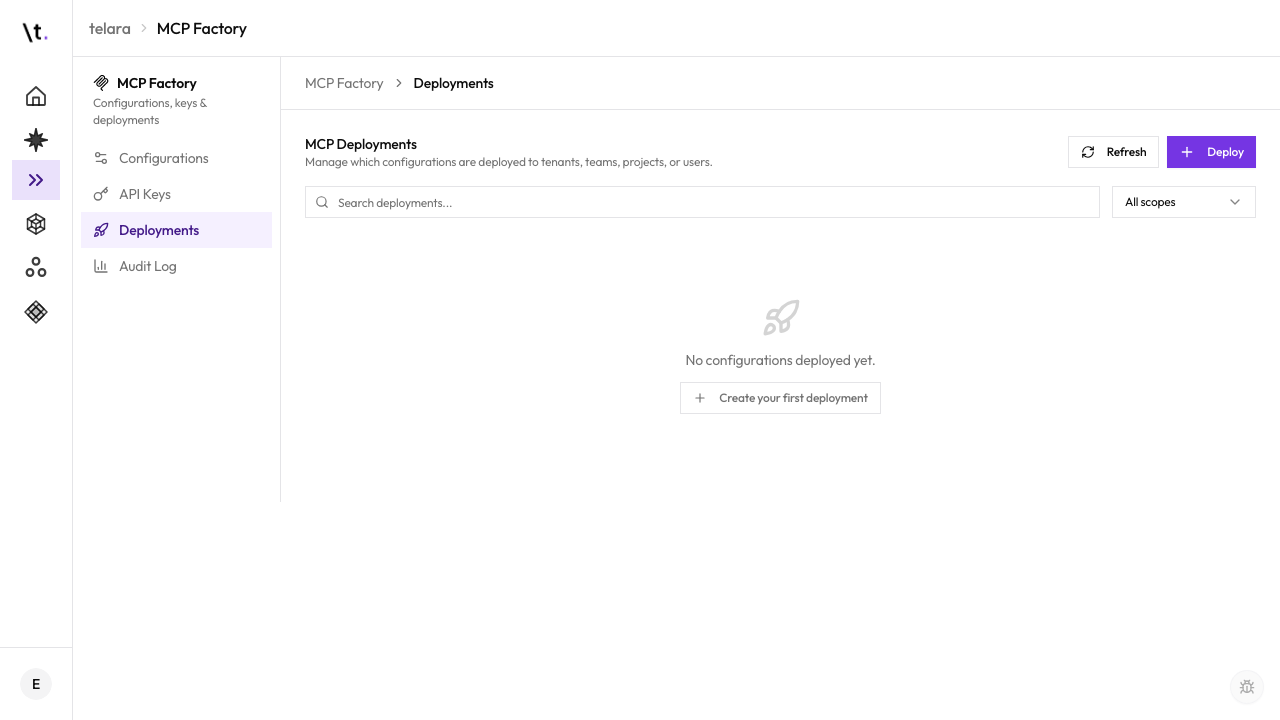
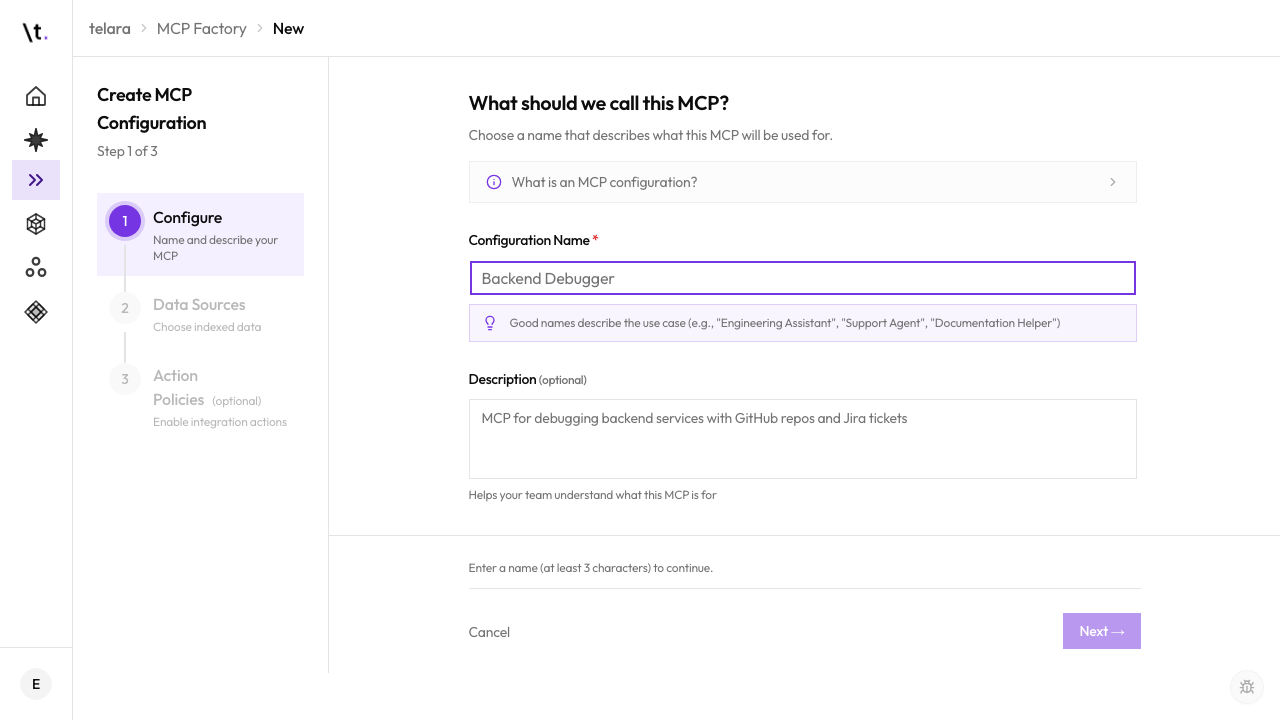
The configuration is applied automatically the next time users run telara login. No email sent, no manual steps required.
Targeted users receive an email with the endpoint URL, their API key, and step-by-step instructions for their agent tool.
User Experience
What users see after a managed deployment
For managed CLI deployments, users don't need to do anything special. The next time they authenticate with the Telara CLI, the configuration is applied automatically:
No manual setup needed. The configuration name, connected tools, and active integrations are all applied from your deployment.
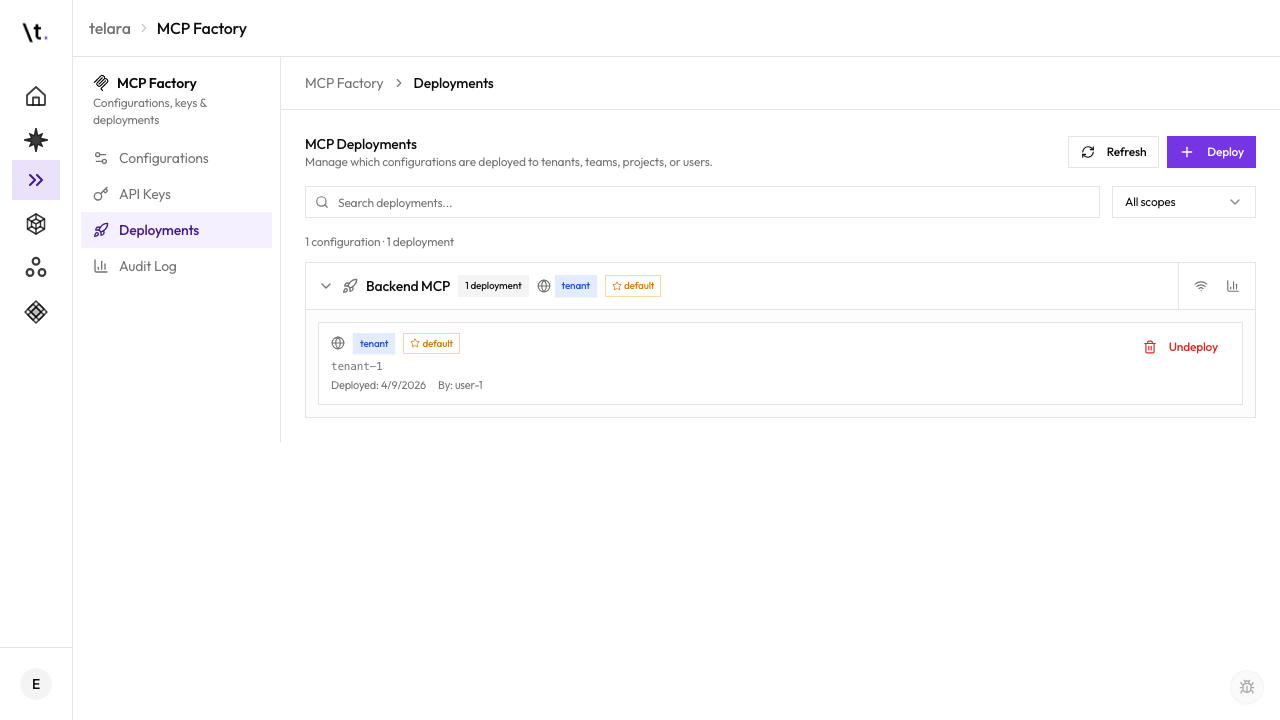
The Deployments tab shows how many users have actively connected to each deployment. "Deployed to" is the target count; "Connected" is how many have actually authenticated and connected their tools. Use this to follow up with users who haven't connected yet.
Revocation
Revoking a deployment
To remove access for a deployment's audience, navigate to the Deployments tab, open the deployment, and click Revoke.
The deployment is deactivated. Affected users lose access on their next tool restart — active sessions are not forcibly disconnected mid-task, but no new connections are accepted. The configuration itself is not deleted — only this deployment is revoked.