



How-To Guides / Admin
Connect an Integration
Link external platforms to Telara so agents can access them. Telara supports OAuth, API key, and app-based integrations — each with encrypted credential storage and tool-level access controls.
Overview
Three types of integrations
Telara supports three connection methods depending on what the external platform offers.
Telara handles the entire OAuth authorization flow. You click Connect, approve access on the external platform, and are redirected back automatically. No tokens to copy or store.
Generate an API key in the external platform's settings and paste it into Telara. The key is encrypted and stored — you only enter it once.
Install a pre-built app with a defined set of permissions. The app is scoped to only the capabilities it needs — no over-provisioned access.
OAuth Flow
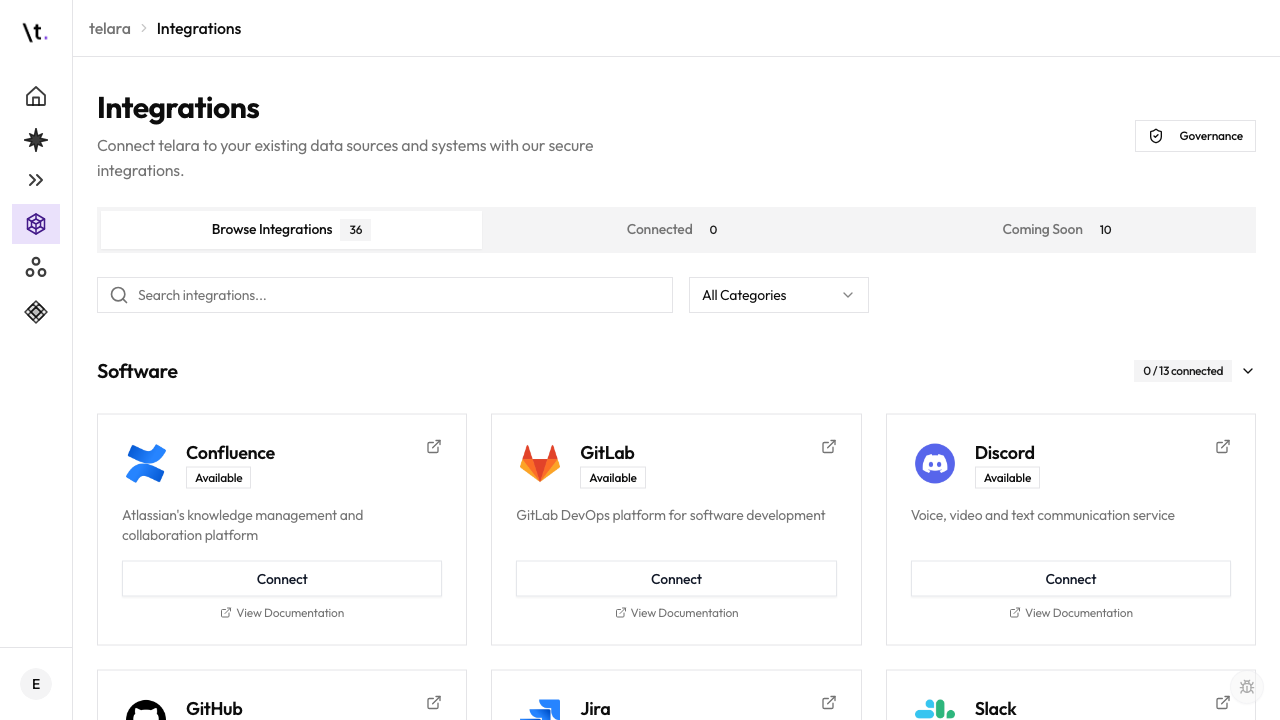
Connecting via OAuth
For platforms like GitHub, Slack, GitLab, and Google Workspace, Telara manages the OAuth authorization automatically.
API Key Flow
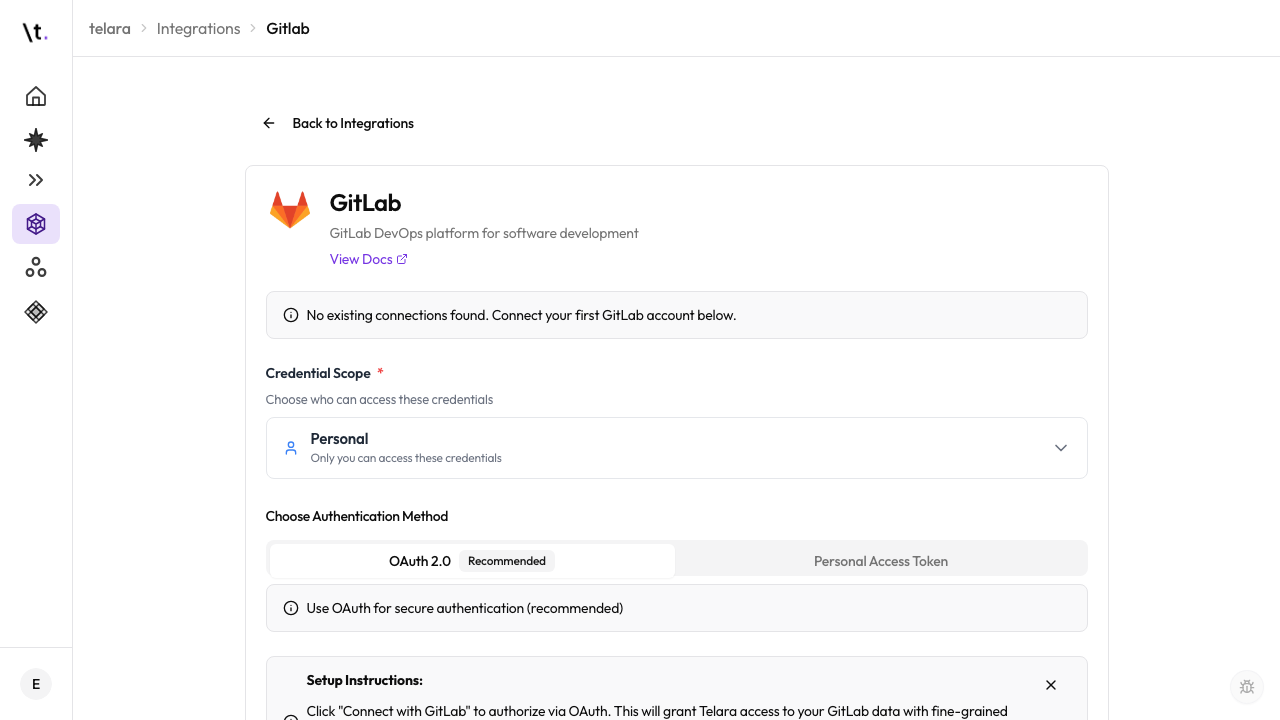
Connecting via API key
For monitoring and observability platforms, you generate a key in the external tool and paste it into Telara.
- Datadog→ Organization Settings → API Keys
- Sentry→ User Settings → API Tokens
- New Relic→ User Menu → API Keys
- PagerDuty→ User Settings → User Token API Keys
Access Control
Restricting which tools a credential can use
After connecting any integration, you can restrict which specific actions this credential allows. This is optional but recommended — especially for shared org-wide credentials.
For example, a GitHub credential used by most of the engineering team might be limited to reading repositories, creating issues, and searching code — while the ability to merge pull requests or delete branches is restricted to a separate credential used only by senior engineers.
Restricting a credential's tool allowlist is independent from your permission policy. Both apply: a tool must be in the allowlist AND permitted by the policy for an agent to use it.
Scope
Credential scope
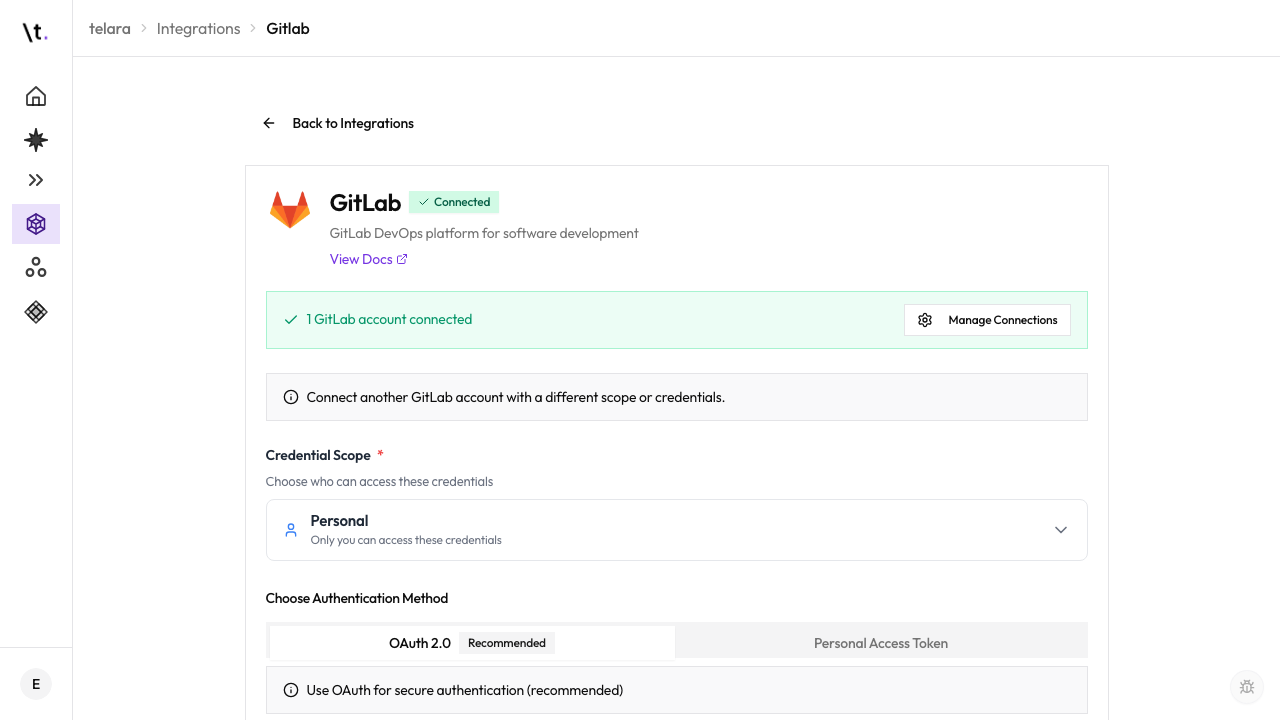
When you connect an integration, choose how broadly the credential is available within your organization.
All users and configurations in the organization can use this credential. Best for shared platforms like your main GitHub org or company Slack workspace.
Only configurations targeting this team can use the credential. Useful when a team has its own Jira project, dedicated Slack workspace, or separate GitHub org.
Only the individual user's configurations can use this credential. Useful for personal GitHub accounts or user-specific API tokens.
Credentials are encrypted at rest and never surfaced to users or agents. Agents use them through the permission layer — an agent can perform an action a credential enables, but it cannot read or export the underlying key or token.