



How-To Guides / User
Create a Configuration
A configuration bundles the integrations, search tools, and permission policies that your AI tools use. Create one to connect Claude Code, Cursor, or Windsurf to exactly the data and tools you need.
User
Configurations
Prerequisite: at least one integration
You need at least one integration available before creating a configuration. If you don't see any integrations, request access first.
Request integration accessSteps
How to create a configuration
1
Open Capabilities → New Configuration
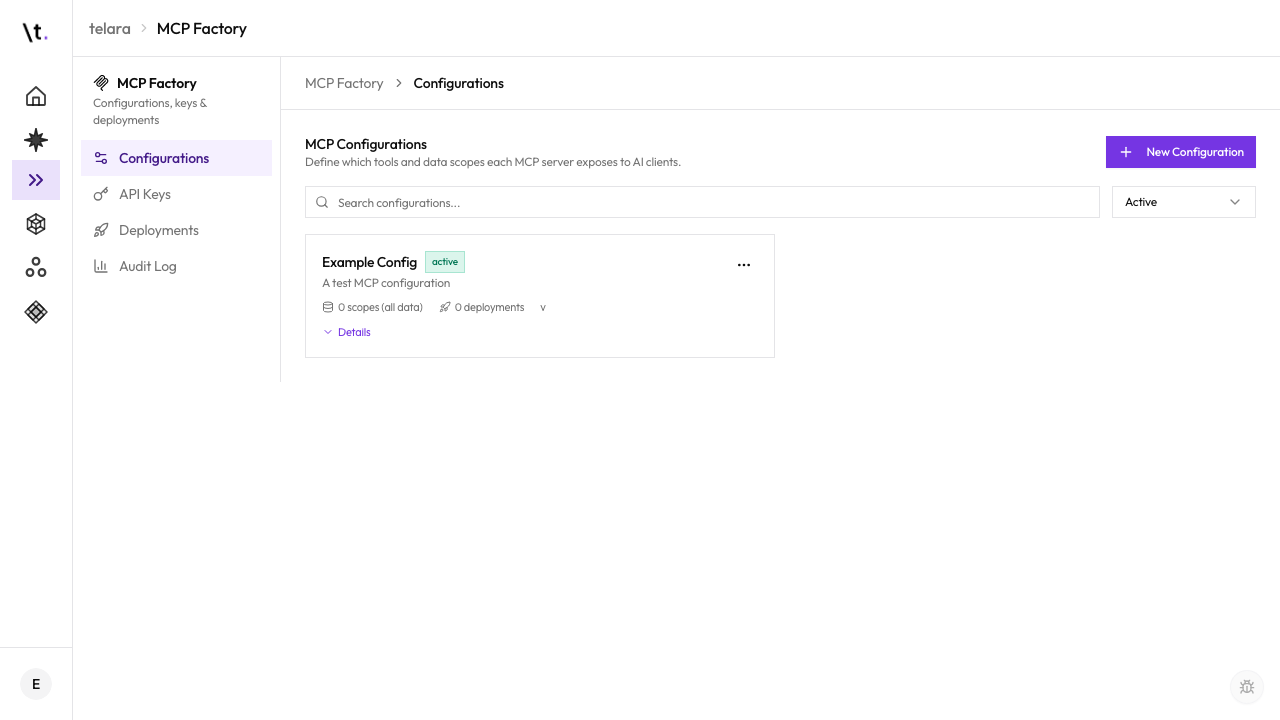
Open the Telara dashboard and go to Agents → Capabilities in the left sidebar. The Configurations tab opens by default; click New Configuration in the top right.
2
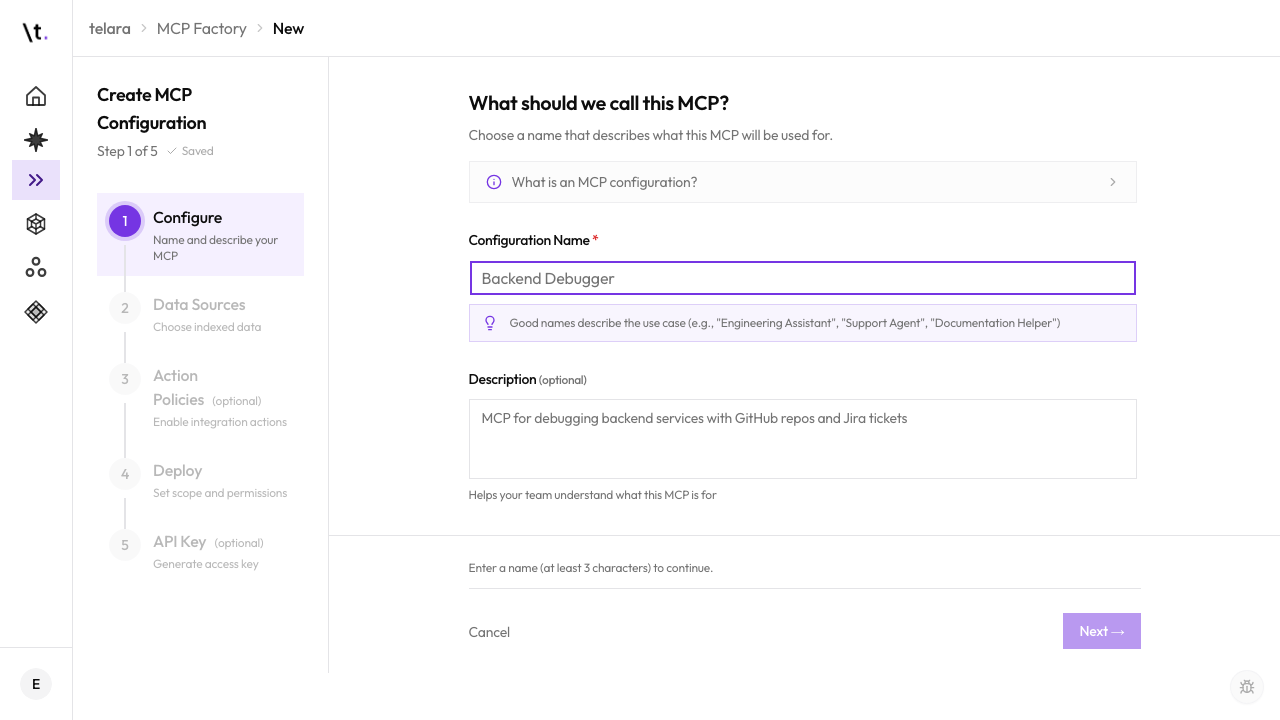
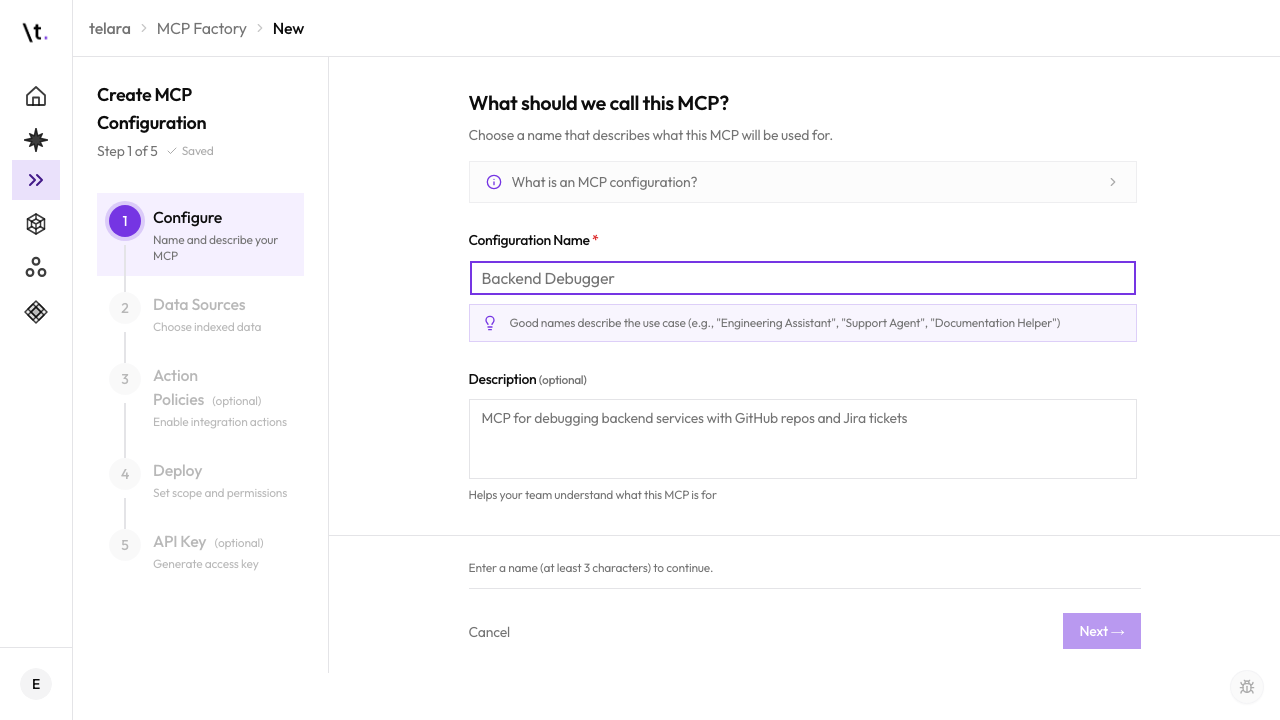
Enter a name and description
Choose a name that clearly signals the purpose of this configuration. Examples: "My Dev Setup" or "Frontend Project Config". The description helps teammates understand what it's for.
3
Add integrations
Select the integrations you want to include. Only integrations available to you are shown. You can add multiple integrations to a single configuration.
4
Set data filters for each integration
For each integration, narrow the scope to the repos, channels, projects, or spaces that are relevant to this configuration. Keeping the scope narrow means faster, more relevant results when your AI tools search your knowledge base.
5
Enable search tools
Toggle the search tools you want to include — knowledge base search, code search, and document search. You can enable all or just the ones relevant to your workflow.
6
Attach a permission policy
Choose a permission policy that controls what actions agents can take through this configuration. Use the org default, or select a personal policy you've already created.
7
Click 'Create'
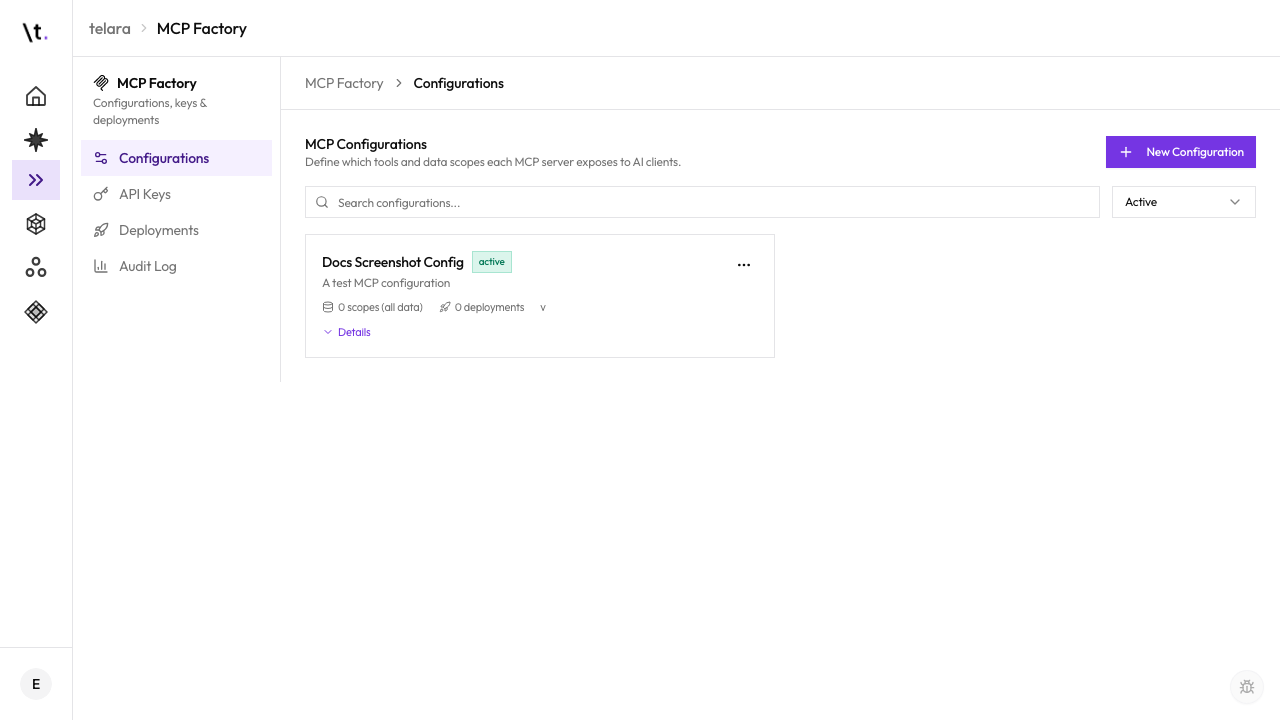
Telara generates your endpoint URL and API key. Copy these to connect your AI tools.
Connect Your Tools
Connect Claude Code, Cursor, or Windsurf
Once your configuration is created, connect your AI coding tools using one of these methods:
Quick setup via CLI
Run the command below in your terminal. All your installed tools update automatically — no manual config file editing required.
telara config global "[Your Config Name]"
Manual setup
Copy the endpoint URL and API key from the configuration page, then follow the setup guide for your specific tool.
Tool setup guides