



How-To Guides / User
Use Permission Policies
Permission policies define what actions your agents can take. Policies are created and managed by your admins — here is how to find the ones available to you and put them to work on your configurations.
Policies are created and managed by admins. As a member, you can attach any policy available for your scope to configurations you control — but creating, editing, or retiring a policy is an admin action. If you need a new or changed policy, ask an admin; admins can also stage a draft for review.
Permission Levels
The three permission levels
Every action in a connected integration can be assigned one of three permission levels.
The agent takes the action immediately with no interruption. Use this for low-risk, repetitive operations.
The agent pauses and notifies you (or a designated reviewer) before proceeding. Use this for actions with meaningful consequences.
The action is never taken, even if requested. Use this to create hard guardrails around sensitive or irreversible operations.
Steps
How to use permission policies
Attaching to a Configuration
Attach a policy to your configuration
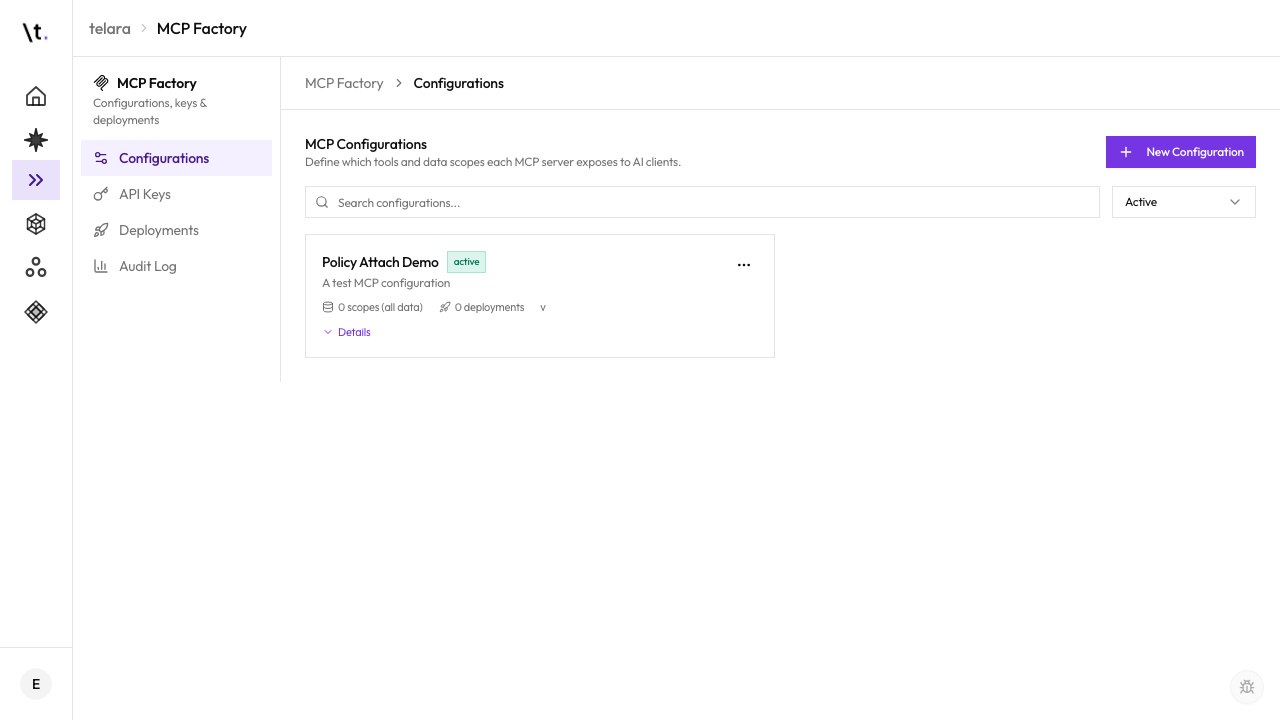
Found a policy that fits? Attach it to any configuration you control: navigate to Capabilities → Configurations → [Your Config] → Policies → Attach Policy.
Common Patterns
Common policy shapes to look for — or ask your admin for
All write and action operations are blocked. Only search and read actions are allowed. Good for research or read-only workflows.
Creates are auto-approved, updates require your approval, and deletions are blocked. Balances speed with safety.
Everything requires your approval before the agent acts. Best when you're getting started and want full visibility into every action.