Telara

How-To Guides / User

Request Integration Access

Your admin manages which integrations are available. If you need access to a platform that isn't currently connected, you can submit a request directly from the Telara dashboard.

User
Integrations

Overview

When to submit a request

Submit an access request in either of these situations:

You don't see an integration you need
If a platform like GitHub, Jira, or Slack doesn't appear in your available tools, it may not be connected yet — or you may not have access to it.
You need access at a narrower scope
You may have org-wide access to an integration but need it connected specifically to your team or project with different settings.

Steps

How to request access

1
Open Context Engine → Integrations
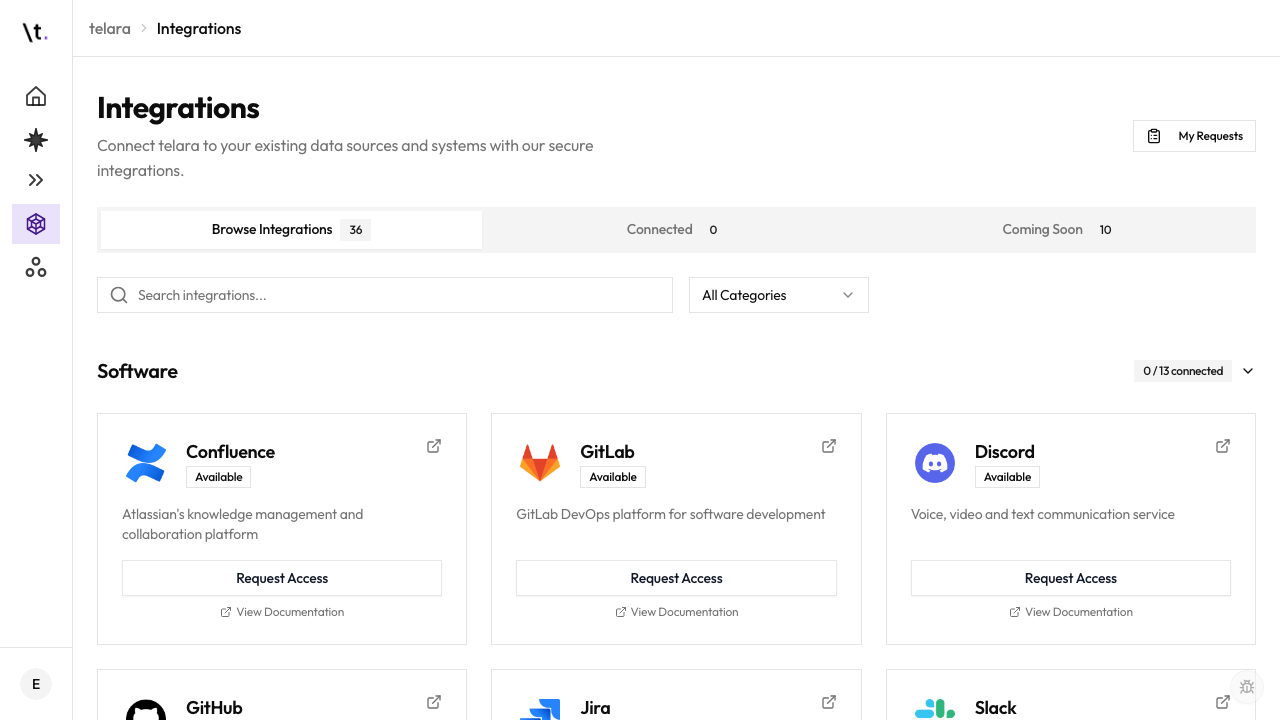
Open the Telara dashboard and select Context Engine → Integrations from the left sidebar. This page lists all integrations your organization has connected.
Integrations page showing available integrations with 'Request Access' buttons on locked ones
2
Find the integration you need
Integrations your admin has connected appear with a green status badge. Integrations you don't currently have access to show a Request Access button instead of a connect option.
3
Click 'Request Access' on the integration
A request form opens. You can request access for yourself, your team, or a project.
4
Select the scope
Choose who should receive access:
  • Just me — access only for your account
  • My team: [Team Name] — access for everyone on your team
  • My project: [Project Name] — access scoped to a specific project
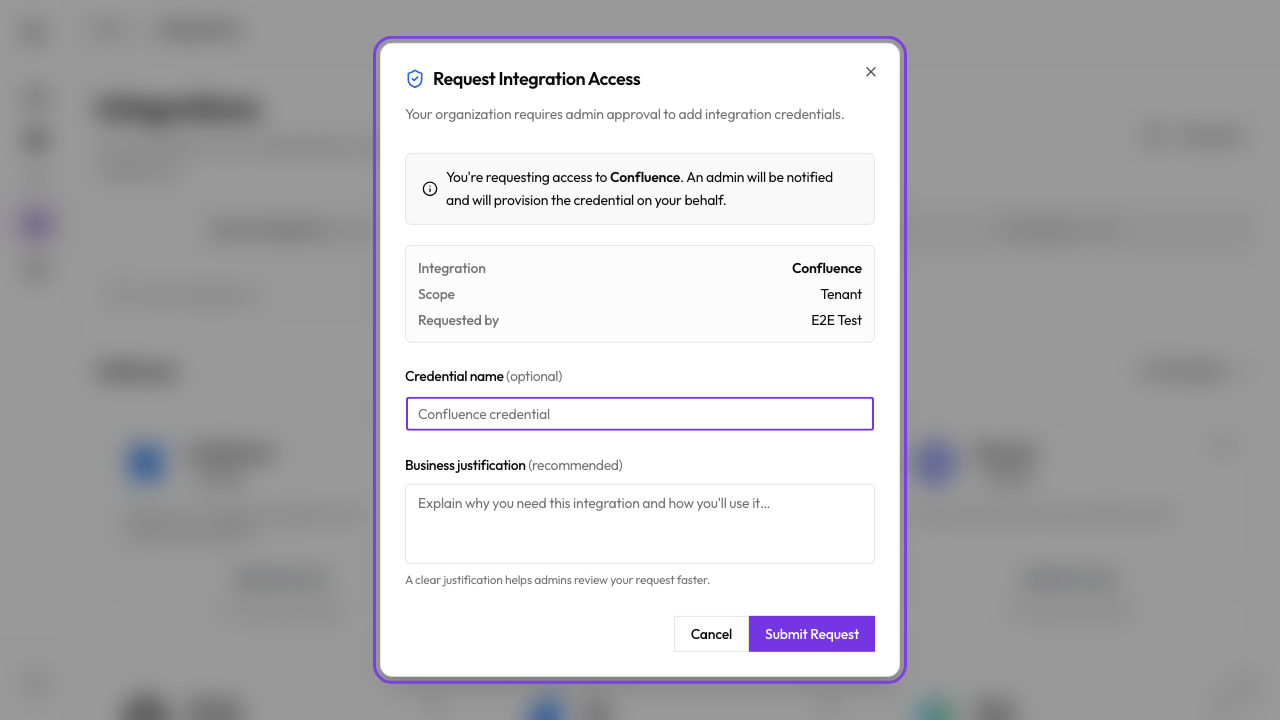
Request access form with scope selector and justification text area
5
Add a justification (optional but recommended)
Describe why you need this integration and what you plan to use it for. A clear justification helps your admin approve the request faster.
6
Click 'Submit Request'
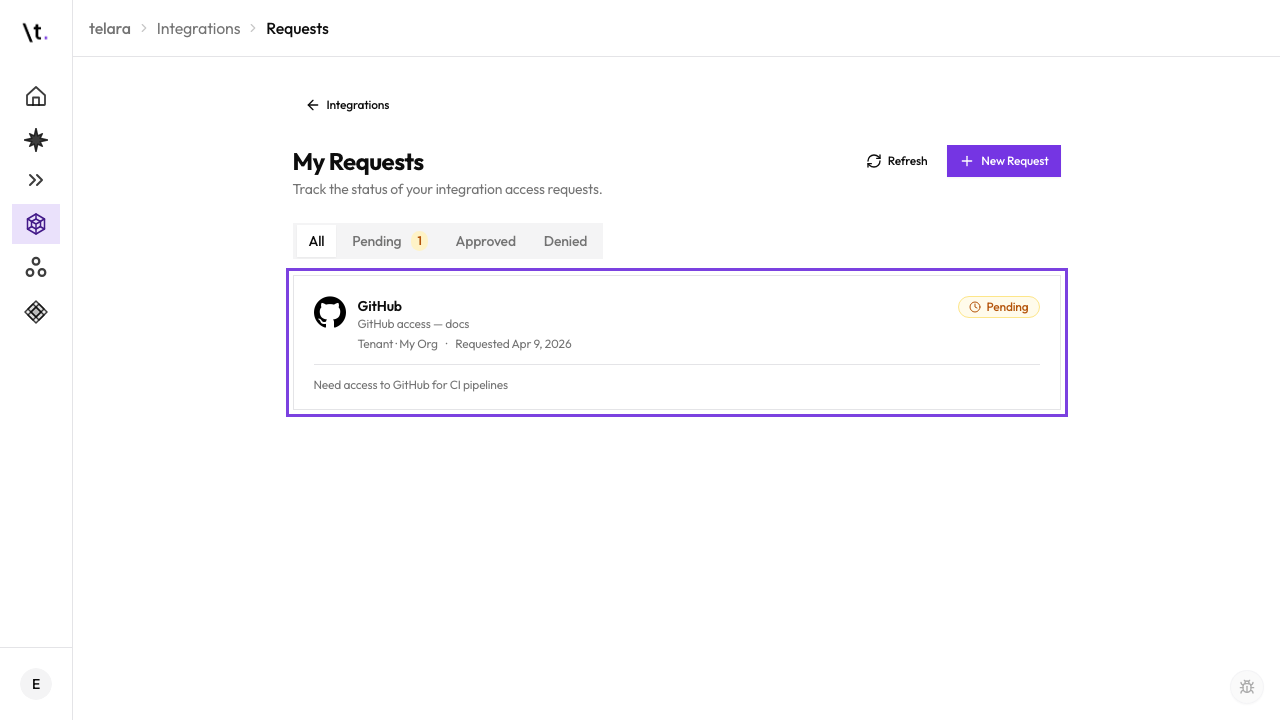
Your request is submitted. You'll see a confirmation screen with a Pending Approval status.
Submitted request showing 'Pending Approval' status

After Submitting

What happens next

Your admin receives a notification about your request. They can review it from the Telara Admin Console under Pending Requests. You'll receive a notification whether your request is approved or denied.

After approval

Once approved, the integration appears in your available tools and can be added to any configuration you create.

After you submit

Track your request

Every request you've submitted, and its current status, is listed on your Requests page — check there instead of asking around when you're waiting on an approval.